Showing posts with label Performance. Show all posts

Tuesday, December 5, 2017

What is a Project Plan?

In large enterprises with hundreds or thousands of capital projects, it is important to create standards to which all projects must adhere. This provides the organization the ability to roll up and assess overall project performance across the organization as well as look at resource capacity and other key performance indicators.

Read the post on Ten Six

Monday, August 28, 2017

Breve Introdução ao EVM

A chave para abrir a porta a uma infinidade de métricas de status do projeto é o Valor Ganho (EVM). Esta é uma maneira de colocar um valor no progresso do trabalho alcançado. Mas como é obtido/ganho o valor especificado?
Muito na gestão do valor ganho (EVM) depende do valor monetizado que você coloca em trabalhos realizados ou no progresso em entregáveis.
Vamos apresentar brevemente o valor ganho para suportar o EVM mais simples.

Gestão do Valor Ganho

A EVM é uma maneira de quantificar o progresso do projeto com comparação do progresso real com o progresso planeado e o custo real gasto. A EVM desloca estrategicamente o ponto de vista de planeado versus real (acompanhamento tradicional usado em organizações não-EVM) para planeado versus ganho versus real.

Valor Planeado

A maioria dos projetos vem com orçamentos. Portanto, mudar a perspetiva dos entregáveis planeados, o valor planeado não é um salto particularmente difícil de fazer. O valor planeado é o orçamento ou o custo acordado do projeto e como ele será gasto ao longo do tempo.
Um conceito fundamental no EVM é que o trabalho vale o valor planeado (orçamento) do trabalho. O valor planeado simplesmente indicado é quanto valor você planeou ganhar num determinado momento. Por exemplo, você planeou gastar 6000 € para instalar um gerador diesel num barco. O valor planeado é, portanto, de 6000 €. Por definição, quando esse trabalho estiver 100% concluído, valerá 6000 € para o projeto.

Valor Ganho

O valor ganho mede o progresso entregue em termos monetários (valor do trabalho realizado), e isso permite que o gestor do projeto quantifique o progresso como um valor monetário. Qual a utilidade disto? Uma vez que pode colocar um valor monetário no progresso alcançado, pode compará-lo com o valor planeado e o custo real. Esta mudança de perspetiva de percentagem de conclusão para o valor do trabalho realizado ou do valor ganho é uma mudança no pensamento que contribui significativamente para a análise EVM.
O valor ganho é uma forma de colocar um valor monetário no progresso do trabalho alcançado. A métrica de valor ganho é fundamentalmente um valor total percentual em euros. Em vez de dizer que uma entrega foi completada numa data especificada, o valor ganho diz um valor em termos de um montante em euros do projeto concluído numa data especificada. O valor ganho indicado simplesmente é quanto valor foi ganho efetivamemnte no projeto num determinado momento.
De novo, é uma mudança no pensamento para medir o progresso entregável em termos monetários (valor do trabalho realizado). Isso permite-nos traçar e comparar as três métricas (valor planeado, valor ganho e custo real) num único gráfico, o que, novamente, abre a porta para a análise que de outra forma, não é possível. Assim, pela medida do progresso entregável em termos monetários (valor do trabalho realizado), é possível projetar ou sobrepor o progresso do trabalho no mesmo gráfico que o custo orçamentado e o custo real, o que aumenta significativamente a possibilidade de métricas disponíveis.

Gráfico de Custo

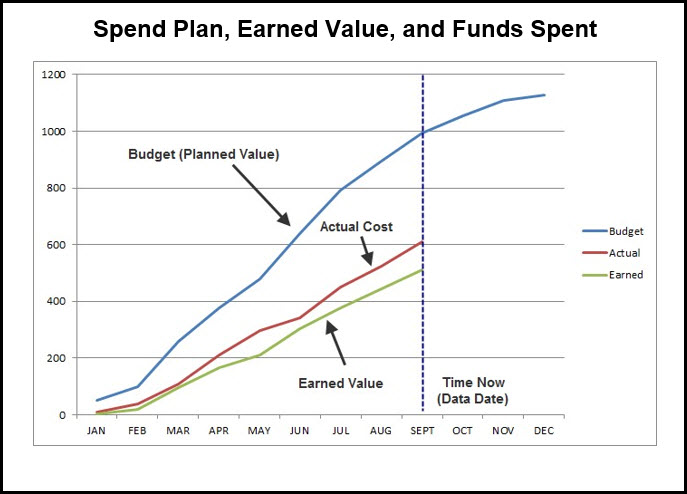
Vamos em primeiro lugar decifrar a situação de agendamento a partir de um gráfico de custo e, em seguida, adicionar o valor ganho para mostrar como a adição do valor ganho proporciona uma melhor compreensão da situação verdadeira do plano. Na Figura 1, temos um gráfico de orçamentado versus  custo real ao longo do tempo ou plano de despesa versus de fundos gastos.

Figura 1
O custo orçamentado é o valor planeado do trabalho do projeto. Novamente, pense em termos de valor ou em termos económicos. Este gráfico mostra que os custos reais do projeto são significativamente menores do que os custos orçamentados. Parece que tudo está bem com o projeto - parecemos estar subestimando. Mas o que essa trama nos informa sobre o trabalho real concluído? Não muito; A percentagem do orçamento gasto ou o custo real não equivalem à percentagem do projeto completo. "A percentagem do gasto não é percentagem do feito". Então, ainda estamos no escuro em relação à situação de status.

Gráfico de Custo e de Valor Ganho

Agora vamos adicionar o valor ganho a essa trama para obter mais informação; o valor ganho contabiliza quer o custo do projeto como a situação de trabalho alcançada para colocar o valor no trabalho realizado. Este custo do projeto e a medição de progresso entregável em termos de euros fornece a valiosa terceira etapa, figura 2, para os lotes de custo orçamentado e custo real.
Figura 2
Quando adicionamos uma percentagem de conclusão em euros ou valor ganho para a nossa trama, observamos que a situação do cronograma real não é boa. O valor obtido a partir de setembro é significativamente menor que o custo orçamentado, então estamos atrasados. E o valor ganho a partir de setembro é menor do que o custo real, então nossa taxa de uso dos fundos do projeto é maior do que a taxa de progressão entregável; Estamos sobre o orçamento no trabalho concluído. O lote de valor gano revelou a verdadeira situação do    projeto, o que não é bom.
O gráfico de exercício mostra o valor em traçar a métrica de valor ganho e os custos em conjunto. Fornece uma visão de cronograma muito melhor e permite que uma análise que de outra forma não seria possível. A intenção aqui não é listar as muitas métricas de medição de valor ganho que ficam disponíveis a partir deste gráfico de três elementos. Essas métricas de gestão do valor ganho estão resumidas no Cartão de Ouro de Gestão de Valor Ganho da Defense Acquisition University.
Por enquanto queremos somente apreciar melhor o valor obtido ao discutir um projeto. No projeto de demonstração, acordou um contrato para construir 4 Quilómetros de via férrea por 400 mil em quatro meses com um contratado. No final de 3 meses, o contratado completou apenas 2 milhas de via com um custo de US $. ~
O gráfico apenas considera os custos orçamentados e reais, então dirá que no final de três meses você está 50.000 € acima do orçamento. Você gastou 350.000 quando foi orçado para gastar apenas 300.000. Mas esta análise apenas considera custos planeados e custos reais. O valor do trabalho alcançado não é considerado. O valor ganho considera o custo e o âmbito do trabalho alcançado em conjunto.
A análise do valor ganho diz que, a cada mês, devem "ganhar" 100 mil se estiverem no alvo por custo e cronograma. Infelizmente, em 3 meses eles apenas completaram 2 milhas de trilhos, pelo que seu valor ganho é de apenas 200.000. Bem, eles gastaram 350.000, então eles estão acima do orçamento em 150.000 e não 50.000. Também só completaram 2 milhas de trilho quando o programado para completar era 3 milhas, então estão atrasados em 100 mil. Esta análise de cronograma é refletida no gráfico de valor obtido para o projeto ferroviário, Figura 3.
Figura 3
A análise deste gráfico mostra uma variância de custo do valor real de ganhos de 150.000, o que é 3 vezes mais a variação de custo quando apenas considerando valores de custo e valor ganho. O planeado para o valor ganho em Euros é de 100.000. Note que o gráfico também exibe convenientemente o valor de tempo dessa variação de cronograma, 1 mês.

Sumário

Quando se trata de medir o progresso do cronograma, é comum considerar o âmbito completo ou os entregáveis submetidos. Se, no entanto, incluímos tanto o custo quanto o âmbito do trabalho alcançado juntos na medida de progresso chegamos ao termo útil no agendamento de valor ganho.
A métrica do valor ganho, novamente, é fundamentalmente uma percentagem de conclusão em Euros. O valor ganho não é simplesmente o dinheiro gasto; É o valor do euro colocado no âmbito completado. Considere-o como o dinheiro obtido pelo âmbito concluído. O subcontratado conclui o trabalho e é compensado monetariamente em conformidade. Essa compensação correlaciona-se com o valor ganho num momento no tempo durante a vida do projeto.

O projeto é, portanto, compartimentado em pedaços de trabalho que têm valor monetário e, se completo, valor ganho. O valor ganho, além do plano de gastos (orçamento) e dos recursos gastos, fornece muita visão sobre a verdadeira situação do projeto.

Sunday, August 27, 2017

Brief Introduction to Earned Value

The key to unlocking the door to a plethora of project status metrics is earned value, which is a way of placing a value on the progress of work achieved. But how is earned value specified?
Much in Earned Value Management (EVM) hinges on the monetized value you place on accomplished work or progress on deliverables.

This article briefly discusses earned value to support more insightful EVM.

Read The article on Tensix

Wednesday, July 20, 2016

Tracking Labor Units on Multiple Resourced Activities In Primavera P6

If you have activities with multiple resource assignments in your schedule, it’s typical even with the best of schedules that your resources don’t always work the exact hours they were originally planned to. Do you know how to track labor units in Primavera P6 so that your progress updates on the multiple resourced activities accurately reflect the actual labor units expended?

It is important when tracking the labor units of activities, particularly, activities with multiple resource assignments, to follow the proper sequence for the procedures. If the procedures are not followed in the prescribed order, then Primavera P6 will compute erroneous labor units when recalculating the schedule.

Thursday, June 2, 2016

Assigning Fixed Price Costs to Activities in Primavera P6

Primavera P6 has a standard process for creating and assigning labor, material, and equipment resources to compute activity cost. What if the activity is performed at a fixed price? Yes, there is a way to specify a fixed price activity cost in Primavera P6 Professional.

A popular procurement contract type is the fixed price contract. In this type of agreement the subcontractor agrees to perform an activity at a fixed price, regardless, of the actual labor, material, and/or equipment costs. 


Read the post on TenSix

Wednesday, March 2, 2016

Primavera P6 Professional EVM Features

Increasingly of late, we’ve been getting enquiries about the capabilities of Primavera P6 Professional as far as performing Earned Value Management (EVM) is concerned. Can it do it? If so, can you help us use Primavera P6 for Earned Value Management? Can I develop a DoD or DoE certified EVM system using just Primavera P6?


Read the article on TenSix

Monday, April 20, 2015

Measuring Project Progress: 6 Methods You Should Know

By Reshma Sadhu

Accurately measuring the progress of a project is always a challenge. There are many factors to account for in an progress update – type of measurement, accuracy of the data, frequency of the collect and the system of record are all important factor in accurate progress measurements.

And software packages like Primavera P6 don’t always help us out. Sure there a 3 choices for Percent Complete Types, but how to we decide which one works best and under which conditions?

Inaccurate progress will foil your ability to spot early warning signs of trouble ahead, so to avoid that, here are 6 common methods for measuring project progress that will help you best measure performance and work completion. The methods below are summarized from “Project Control: Integrating Cost and Schedule in Construction,” by Wayne Del Pico.


1. Units Completed

The Units Completed lends itself well to tracking tasks that are done repeatedly, where each iteration can easily measured. Usually a task that is done repeatedly tends to take about the same amount of time, resources and effort, so tracking the units completed works well here. A simple example could be installing standard light fixtures. Each fixture takes roughly the same amount of time; if we had 100 fixtures to install then we can simply count the units installed. In this case there’s no subjective experience-based judgement involved.


2. Incremental Milestones

Also known as the ‘steps’ method, the incremental milestones method is predominantly used for cost accounts that involve subtasks that need to be completed in an orderly fashion. An example of this technique is the forming and placing of a concrete foundation wall. Laying the foundation wall on footings, erecting inside wall panels and brace, setting horizontal and vertical rebar in formwork and so forth needs to be done in sequence to complete the task appropriately.

So how do you calculate this data? The calculation is built on each single item step and the budgeted amount of time (labor hours) that is needed to complete the task by the construction crew. As each step is completed, that is documented as a mini-milestone which represents a percentage of the total installation process. The percentage given for each subtask can vary based on the project and this progress is usually agreed on to be used as a measuring took beforehand. A good way to implement this method in Primavera P6 is using Activity Steps.


3. Start/Finish

This method is only focused on capturing the starting point and the finishing point of the task and nothing in between. This method is best for tasks that are short in duration. You would implement this method if the task’s work estimations are not available or if the percent complete progress data is too difficult to collect.

“Classic examples include testing services such as load test on electric panels, flushing and cleaning of piping, and similar tasks.”1

Using the Start/Finish technique, we earn a percentage of progress when the task starts and the other half is earned once the task is complete. These percentages are determined by the owner and contractor of the project.

Often, companies agree to use the standard 50/50 Rule or other rules:

50/50 Rule – once started, the task is marked as 50% complete, and the balance is earned at final completion of the work.

20/80 Rule – used to track higher value tasks that takes a longer time to reach completion.

0/100 Rule – this rule illustrates that once 100 percent of the task is completed, only then will the value be earned. An example of this is in testing or experimental tasks since you cannot get results until the task is completed.


4. Cost Ratio

The Cost Ratio method is usually implemented on a project that has tasks that tend occur over a long phase or the entire project. Often used for Overhead costs, this technique is measured based on the budgeted allocation of dollars vs. the labour hours of production. This method gives the contractor the ability to earn value that is equal to the overall percent of project completion.

“For example,[] if the overall progress of the project was determined to be 42 percent, then the contractor would have earned 42 percent of the overhead and fees.”1


5. Experience/Opinion

Unlike the methods above that rely on definitive data, this method is relies on the experience and subjectivity of the project manager. This technique is used for tasks such as dewatering or frost removal/protection. It’s not usually recommended and tends to be seen as the last resort because each individual’s experiences and opinions vary from one another and can cause conflict between owners, contractors and architect.
 

6. Weighted or Equivalent Units

This method was highlighted as the best technique in the text and is the one that requires more effort, but also extends to a wider data range. The tasks that are being calculated tend to occur over a longer duration time and includes multiple subtasks, where subtasks can have different units of measurements.

The example used to illustrate this method is building a structural steel package. In order to complete this project it requires various units, labor hours, resources and subtasks. So to calculate the subtasks, it’s weighted on the estimated level of efforts in labor hours or by monetary value that is particular to each subtask. Once the weighted value is determined, it’s converted to reflect that value in units of measure specific to the task – and for this example, the units of measure would be tons. So once each subtask has been completed, the weighted tons (units of measure) is then converted to the equivalent units of percentage complete of the overall project.

These 6 methods for measuring project progress are commonly used in Construction project management and filter into a process of determining a percentage complete for the project as a whole using Earned Value Management.

Which of these methods do you the most on your projects?

Wednesday, March 25, 2015

Is Retained Logic the best Scheduling Option in Primavera?

Primavera has three Scheduling Options to choose from when you are scheduling your project. Retained Logic is the default scheduling option. When you are building a Baseline, the default option works fine. But things change when you start updating your project, activities start getting delayed and do not get executed as planned.  You then have to make a decision on whether you want to continue using Retained logic or choose Progress Override or Actual Dates as your Scheduling Option. A lot has been discussed over the internet forums on which option is the best for a project and Retained Logic has won with an overwhelming majority. But I have a different opinion.

image

Read the blog here

From Amit Parmar em www.theprimaverablog.com

Monday, March 9, 2015

Using Physical and Duration Percent Complete Types In Primavera P6

If you are looking for a quick way to update the progress of work on your Primavera P6 schedule or you want to describe the progress of work that has a non-uniform production rate, then you should become familiar with the different Percent Complete Types offered in Oracle Primavera P6.

Here we will start with the situation where you already have a schedule and associated baseline. There is demand for accurate, weekly updates on your project and you need an efficient and accurate way of modeling activity progress. This is where the different Percent Complete Types in Primavera P6 come in rather handy.…

See the article on the Tensix Consulting blog site.

A useful exercise would be to take the example schedule used in this article and provide weekly updates to it, comparing your results to those in this article.

Wednesday, February 25, 2015

Tracking Costs in Primavera P6

Do you know how to track schedule costs in Primavera P6? Most of us are familiar with the process of updating and tracking schedule activity progress from a time standpoint, but what about the cost of those activities? Well, Primavera P6 has features available for keeping track of the cost of labor, equipment, and material resources. It is also possible to track the cost of project specific expenses.

This article describes the process of tracking the cost of labor resources on a project. It considers a schedule where all activities are on the critical path, so a delay in any activity will result both an increased activity cost and project management cost.

See the rest of the post in Tensix Blog here

Tuesday, December 23, 2014

BIM Implementation and Project Controls

As current regulations require BIM implementation for every public sector construction and infrastructure project from 2016 onwards[1]designers, contractors and supply chains in the industry wil l need to move on fast from their current ways of working and adapt to achieve compliance with the upcoming legislation. The policy is however, not a punitive one for the industry. It is a progressive plan to significantly improve industry efficiency, from the project management stage in design and construction to the subsequent operational management of the asset during its lifetime.

What is BIM?

Read more on  http://www.planningplanet.com/

Wednesday, September 3, 2014

Level of Effort Activities

I’m including three tutorials over the use of Level of Effort Activities on Primavera P6.

Setting Up LOEs and Resource Loading Them
Use of Level of Effort (LOE) activities to resource load a schedule.

Level of Effort and Percent Complete
Used primarily to resource-load an ongoing support activity in Primavera P6 schedule.

Use A Level Of Effort To Add Work Stoppage Info To A Project and Still Track To Your Primavera Baseline
When we develop a schedule we assume that an activity can be finished uninterrupted once it has commenced. But, sometime events occur which force the work on the activity to stop.

Be proactive.

Tuesday, September 2, 2014

Percent Complete Type

The activity percent complete type is one of "Duration", "Units", or "Physical". The percent complete type controls whether the Activity % Complete is tied to the Duration % Complete, the Units % Complete, or the Physical % Complete for the activity. Set the percent complete type to "Duration" for activities which are duration driven, for example, administration tasks and training classes. Set the percent complete type to "Physical" for activities which are work-product driven, for example, creating a document or a product. Set the percent complete type to "Units" for activities which are work effort driven, for example, providing a consulting service.

Activity Percent Complete Fields

Physical % Complete

The activity physical percent complete. The physical percent complete reflects the actual progress made on the activity's work products so far. Physical percent complete can be manually entered by people familiar with the status of the activity's work products or it can be based on the completion of assigned Steps. Always in the range 0 to 100.

Duration % Complete

The percent complete of the activity duration. Computed as ((Planned Duration - Remain Duration) / Planned Duration) * 100. Always in the range 0 to 100. The planned duration is taken from the current plan, not from the current baseline.

Duration % of Planned

The activity actual duration percent of planned. Computed as (Actual Duration / BL Duration) * 100. The value can exceed 100. The BL Duration is the activity's at complete duration from the current baseline.

Activity % Complete

The activity percent complete. This value is tied to the activity Duration % Complete, Units % Complete, or Physical % Complete, depending on the setting for the activity's Percent Complete Type, which is one of "Duration", "Units", or "Physical". Always in the range 0 to 100.

Schedule % Complete

The Schedule % Complete specifies how much of the activity's baseline duration has been completed so far. Computed based on where the current data date falls between the activity' s baseline start and finish dates. If the data date is earlier than the BL Start, the Schedule % Complete is 0. If the data date is later than the BL Finish, the Schedule % Complete is 100. The Schedule % Complete indicates how much of the activity duration should be currently completed, relative to the selected baseline.

Note: Summary Schedule percent complete when displayed on an organize band, will ALWAYS be calculated as (BCWS* 100) / BAC, regardless of what earned value technique i. s selected for the activity's WBS.

Performance % Complete

Performance percent complete is used to compute earned value and may be based on the Activity % Complete, on the 0/100 rule, on the 50/50 rule, etc., depending on the technique for computing earned-value percent complete for the activity's WBS. The Performance % Complete specifies what percentage of the activity's planned worth has been earned so far.

Note: Summary Performance percent complete when displayed on an organize band, will ALWAYS be calculated as (BCWP * 100) / BAC, regardless of what earned value technique is selected for the activity's WBS.

Tuesday, March 4, 2014

Project risk and issue reporting

Reporting on project risk and isssues is a matter that changes in every project and for specific client. There is no method and format known for this kind of reporting, but erverybody concurs that including it on the status report will be an inprovement for the decision taking activities.


Are there guidelines about what risk information should be reported to senior management?

No, not that I am aware of. The PMI Risk Practice Standard doesn’t include anything. The PMBOK® Guide talks about ‘Project Performance Reports’ but provides no detail as to what these should include. I think you’ll have to define the content of your reports yourself.

 
What should you include in a graphical risk management dashboard?

For a senior management report I would only report the open risks per project and/or open risks per category (scope, budget, schedule etc). This would let you see if there is one area like schedule that has a big risk impact on all projects.

I wouldn’t include:

  • Total number of risks overall
  • Closed risks
  • Risks with an impact status of Low or Medium

This is because the senior management team can’t do much, if anything, with this information. The number of risks alone is pretty meaningless. Some may be very small, some projects may only have a few but they could be significant. A better way would be to report risk impact – what is the cost of all the risks if they happened?

The best approach would be to ask the key stakeholders what they are interested in seeing. I don’t think closed risks or number of risks is of any use as it doesn’t give them information they need to make decisions about the project. Risks by category, or risks with an impact rating of ‘High’ is more meaningful.


Should I show risk trends over the months?

No. What would the senior management team do with this information? At the beginning of the project you’ll identify lots of risks and then close some and open new ones. If you have a risk review meeting one month and identify another 50 risks this will skew the trend data. I would advise only showing a snapshot in time. You could use an arrow to indicate whether the overall risk profile of this project is going up or down, using a metric like whether there are more or less High risks or whether the cost implications for risk mitigation are going up or down.

 
What about reporting on issues?

For senior management, only show the high priority open ones. Typically I report also on ‘high priority closed this month’, then those issues drop off the report for the next month. This shows that you are making progress in resolving issues, even if new ones come along. If you don’t do this, your report could show that there are 20 open issues with a status of High Priority this month, and 20 next month. However, they could be 20 completely different issues! Without more detail, like issue names and descriptions (which, frankly, your sponsor is not going to want to wade through), your stakeholders will not know that you are dealing with issues and may assume that you are not tackling problems on the project.

As well as a graphical representation in a pie chart or dashboard, I would also include the top 10 issues in more detail – descriptions and action plans. If you need senior management input to resolve any issues make sure that these are included in the report and that you highlight where they need to make decisions.

Again, the best approach would be to ask your senior management team what they want to see. If they don’t know, present them with your graphs and report for a few months and then ask for feedback about what they think and what else they need to know in order to carry out their roles on the project i.e. decision making, governance and oversight.

Thursday, January 2, 2014

What is a Project Plan?

by Ten Six

clip_image002

In large enterprises with hundreds or thousands of capital projects, it is important to create standards to which all projects must adhere. This provides the organization the ability to roll up and assess overall project performance across the organization as well as look at resource capacity and other key performance indicators.

We recently worked with an organization that deployed Primavera P6 and needed to define these standards. They started with answering the basic question of what a project plan looked like to them.

The Basics Of A Project Plan

All projects are described within a document that defines the project’s objectives and scope. The project plan is mandated and is prepared in Primavera P6. The plan provides a structured statement of how and when the project’s objectives are to be achieved by showing the products to be delivered, activities to be completed and resources required. It is used to define the cost of the project over time. This provides the basis for the project budget through integration of the Primavera P6 plan with Oracle Projects (the project accounting tool).

A project plan is the:

  • Structure
    • Enterprise Planning Structure (EPS)
    • Work breakdown structure (WBS)
    • Work packages
  • Sequence of events necessary to deliver the project’s objectives
    • Activities and milestones
    • Logic and time schedule
    • Includes risk treatment
  • Vehicle for planning the resources required and the cost of delivery
    • All chargeable resources and other scarce/critical resources
    • Contract spend
    • Time-phased cost profile
  • Baseline against which performance is measured
  • Mechanism for determining progress, costs and forecasts
    • Internal and contractor cost of work done
    • Schedule and cost performance (Earned Value)
    • Anticipated final cost
  • Means by which the business can assess and analyze a collective view across all its projects

The plan covers the full scope of the project and can extend over several years. A baseline of the plan and its associated cost profile is authorized in Oracle Projects by stages according to the organization’s project life-cycle and the requirements of the relevant funding authority. The baseline provides an agreed reference for schedule and cost against which performance can be measured. Forecasts of the project schedule and cost provide visibility of the anticipated outcome.

Summary

While most of this seems pretty rudimentary, it is surprising how many organizations have significant gaps in their project management processes, particularly at the more detailed level. While defining what a project should contain and how it is planned may be an obvious place to start, organizations often miss other processes in the project life-cycle. These gaps can allow well-intentioned users to diverge from company standards. This can cause many problems including hampering the efforts to provide accurate consolidated views across the organizations portfolio of projects.

Tuesday, November 19, 2013

Variance Reporting in Primavera P6 Professional

Variance Overview

Variance reporting in Primavera P6 requires that the project has a baseline and it is assigned as either a Project Baseline or a Primary Baseline.

Before attempting variance reporting, you should check the baseline being used for the project. To do this take a look at the information bar at the bottom of the Primavera P6 window.

Baselines are assigned using the Project | Assign Baselines… menu option. The resulting dialog allows existing baselines to be assigned as a Project Baseline or Primary, Secondary or Tertiary baseline.

With a baseline in place it is possible to report any activity that has moved away from its baseline date in the current project schedule.

Variance Reports are typically created using filters that look for values other than zero in the Variance fields available in P6.

You can see the available variance fields using the Columns dialog in P6 as shown in the following figure:

Variance Fields Prefix Explanation

Fields prefixed with Variance – BL Project contain variance values based upon the baseline project assigned as a Project Baseline.

Fields prefixed with Variance – BL1 contain variance values based upon the baseline assigned as the Primary Project.

Fields prefixed with Variance – BL2 and Variance – BL3 contain values based upon the secondary and tertiary baseline assignments for the project respectively.

Therefore, if you want to find out how the current project is performing compared to the Project Baseline, you would look for non-zero values in the Variance – BL Project fields.

Common Variance Filter Options

To find out which activities are no longer scheduled to start or finish on their original baseline dates according to the baseline assigned as Project Baseline, you would create the following filter using the Filter dialog:

If an activity has slipped from its baseline start or baseline finish date, the Variance – BL Project Start Date and Variance – BL Project Finish Datefields will contain a value other than zero and the activity will be displayed in the Gantt chart.

If the Bars dialog is configured to show the Project Baseline bars, you will see the slippage visually on the schedule. You can also display the Variance – BL Project fields you’re filtering on in the activity table to see by what amount the activities vary from the baseline.

More Variance Filter Examples

Exclude Completed Activities

The following filter will show all activities that have a variance and do not have an Activity Status of Completed.

Only Show Activities Starting Late

In this example the filter has been changed to only show values of less than zero variance. In other words, the variance is negative which will only show activities that will start late. If the activity is starting earlier than the baseline, it will not appear in the Gantt chart using this filter.

Once the Gantt chart is displaying the required fields and activity data, the File | Print Preview menu option can be used to run a variance report.

Note: Filters can be saved with the named layout and will be activated whenever the layout is opened.

From Ten Six

Thursday, August 29, 2013

Earned Value Management (EVM) – To Do or Not To Do

by Ten Six

Why should we do Earned Value Management (EVM)? For those of us who implement Earned Value Management Systems (EVMS) regularly within many different organizations, we hear plenty of reasons why an organization shouldn’t do EVM. At the end of the day, most organizations implement an EVMS because they need to comply with a government contract.

Why We Shouldn’t?

Here are some of the most common reasons why organizations don’t want to implement an EVMS:

· Too bureaucratic.

· Too expensive to implement.

· Too many people are required to administer an EVMS.

· Special IT tool-sets are required.

· The Baseline cannot be established early…development programs have too much uncertainty, let’s wait and see.

· “This program is too small to need such an intrusive tool.”

· “We’re only a small company and can’t afford this.”

· “This program is too big…Earned Value is meaningless to us.”

Those are some of the quoted reasons and more often than not, there are other hidden issues that are not shared so readily. These include:

· The objectivity an EVMS provides leaves nowhere to hide.

· We’ll have to do detail planning ahead of the game and are not willing to make that much effort.

· EVM will reveal more details about actual costs than we want Internal or Customer Management to know.

· We don’t want to undergo a Customer based Integrated Baseline Review (IBR) to prove our baseline is valid.

Number 4 above is amusing as it implies that they have a choice whether or not to conduct an Integrated Baseline Review with their customer.

Why We Should?

It won’t be a surprise to anyone that the number one reason to implement a robust EVMS is because it’s a contractual requirement. In fact, the government and agencies have different contract Dollar thresholds where EVM must be a contractual requirement. You can see some examples of these in the table chart here.

Here are some reasons why you should not only implement an EVMS but also embrace it for all programs:

· The Government requires EVM to see cost and schedule variances in order to mitigate issues before they are too large.

· Non-compliance with the Government could be very costly and they do have deep pockets to pursue you.

· The 32 Guidelines reflected in ANSI/EIA-748 represent sound project management principles. Of these Guideline groupings, which do you think should not be reflected in your company’s processes to effectively set up and manage your programs?

  • Organizing: Defining the work and assigning responsibility/accountability for its performance?
  • Planning & Budgeting: Developing a definitive plan to monitor how you’re going to get there and the costs required?
  • Accounting: Establishing cost charge numbers to accrue direct & indirect costs by major element. This will help in comparing actual to planned costs?
  • Analysis: Routine review of cost & schedule performance to date to see where you’ve gone off target, understand how it’s going to get fixed and what it’ll ultimately cost?
  • Revisions: Maintaining a track record of changes made to the contract with the impact to the cost and schedule baselines to use for the next similar program?

It’s true that implementing and executing an ANSI-748 EVM compliant project management plan does require effort by both the project team and senior management. The alternative of not establishing a solid plan to manage a contract’s scope, schedule, budgetary and risks could result in project failure and a financial pressure on your organization. Is it worth the risk to not do EVM?

What about Firm Fixed Price?

Firm Fixed Price (FFP) contracts often do not require EVM as all the risk is on the contractor. But it does beg one question. Why would a company that’s taking on a FFP contract that has them bearing all the cost and schedule risks not do EVM? They are effectively in a position to not know their potential cost and schedule exposure risks. Are you willing to bet your company that everything will work out OK?

Summary

Earned Value Management is essentially best practice project management. Getting bad news on project performance early enough to take action is a lot less painful than the consequences of project failure and contractual non-compliance.

In complement to this post read this.

Thursday, August 8, 2013

Primavera P6 Percent Complete Types

by TheP6Pro

When adding activities to a Primavera P6 EPPM or Professional schedule, you have three possible percent complete types to choose from: Duration, Physical and Units. Which one you choose depends on your desired outcome. This article explains each of the Primavera P6 activity percent compete choices, when you should use a particular percent complete type and how they affect your process for entering status to your project’s schedule.

The Activity % Complete Field

Before we get into the specifics of the percent complete types, we need to take a quick look at the Activity % Complete field. This field’s existence can be a little confusing because it sounds like another percent complete type. However it is, in fact, a field (column) into which a value can be placed to update the value in the activity’s selected percent complete type field. In other words you don’t need to add a column for all three percent complete types that you might be using within a schedule, rather you just add the Activity % Complete field, and enter your values there.

Any option that reduces the number of columns you need to have displayed in your P6 table area is a good thing.

Duration % Complete

This option is used to calculate progress from the planned and remaining duration values. For example, if you enter 6 days of remaining duration for a 10 day duration activity, Primavera P6 will calculate 40% complete. Transversely, if you enter 40% in the Activity % Complete field, P6 will calculate a remaining duration of 6 days.

Original or Planned Duration – Remaining Duration = Percent Complete

Usage:

Enter a percent complete value in the Activity % Complete column or directly into the Duration % Complete column. Primavera P6 will automatically calculate the Remaining Duration for the activity. Or enter a Remaining Duration value and let P6 calculate the percentage.

This percent complete type is best used for more level of effort type activities where measurable deliverables are not expected and the percent complete represents elapsed time more than deliverables completed.

Physical % Complete

The percent complete values will be entered by the user manually. Entering a value in the Activity % Complete field will update the Physical % Complete value. The Physical % Complete type is required if you wish to use Steps to drive progress.

Caution: When Physical % Complete is used, you must adjust the Remaining Duration as this is not calculated by Primavera P6. You must enter a Remaining Duration manually, or set an Expected Finish date on the activity.

If you don’t adjust the Remaining Duration, P6 will add the Actual Duration to the Remaining Duration. This will cause unnecessary variance in the project and will likely alter your critical path. As you can see in the following figure, the Remaining Duration remained at 10 days, the Actual Duration was added to it, giving an At Completion Duration of 14 days, and pushing all successor activities out but that amount.

You can use the Expected Finish date option to help control the remaining duration of Physical % Complete activities. Adding a date in the Expected Finish date field locks down the end date of the activity and forces P6 to calculate the Remaining Duration.

In the above image you can see that an Expected Finish date of 27-Jan-15 has pulled the end date back to its original date and caused P6 to calculate a 6 day remaining duration.

Physical % Complete and Steps

An additional advantage when using the Physical % Complete technique is the ability to progress the activity using weighted steps. Weighted Steps are simply a checklist of things that must be completed before the activity can be considered finished.

Continuing with our Mobilize activity example, weighted steps have been added from a Step Template.

The weights values entered will be calculated to a percentage value by Primavera P6 and will drive the Physical % Complete value of the activity. The weight values can be any decimal number and thus spare the user from manually calculating the Percent Complete values; they just enter some arbitrary value based on whatever factor they choose; number of hours, relative degree of difficulty, whatever.

As Steps are checked off as Completed, so they will drive the Percent Complete for the activity. The user will still need to manually update the remaining duration or expected finish date values as previously described.

Note: the “Calculate Activity % Complete from the activity steps” must be set in the “Calculations” tab of the “Set Project Preferences” dialog must be set in order for this feature to work.

Usage:

The Physical % Complete progress type should be used when dealing with discrete work that equates to one or more measurable delivery items.

Units % Complete

The Units % Complete type is used when resources are assigned to an activity and actual units worked will be tracked. Actual Units may be entered manually or via the Apply Actuals feature that loads actual units from a timesheet module such as Primavera Progress Reporter.

As with Physical % Complete, Units % Complete doesn’t calculate the remaining duration for activities, so you will need to use either the Remaining Duration field or an Expected Finish date to manually control the calculated end date for your activity.

Usage:

Use Units % Complete when resources are assigned to the activity and actual units will be tracked. The only drawback of this method is that hours expended doesn’t necessarily equate to progress achieved, so this method is not very discrete.

Summary

I hope this article helps give you a better understanding of each of the Primavera P6 activity percent complete choices, when they should be applied and what the outcome will be when statusing your project.

The original post is on here! On Ten Six Consulting blog.

Thursday, January 31, 2013

Earned Value Explained

Article By Ten Six Consulting LLC

Most comprehensive project management systems make use of the traditional planned vs. actual model to track how well the project is doing. However, it does leave one important element of the picture unexposed; the value of the work achieved so far…

Read the Article on

Portuguese Version here.

Thursday, December 6, 2012

Financial Periods and Project Performance

From an article from Amit Parmar (PMP) a very good article combination about Financial Periods – a essential element of performance analysis with Primavera P6

Have you ever tried to plot a Budgeted vs actual curve/spread for previous three months in Primavera and wondered why is it distributing the values equally? At times we either forget to store financial periods or we don’t know how to use them. Let’s look at the following example;

We will study the following two cases to see how financial periods are an integral part of monitoring.

Case 1 - Updating an activity without storing any financial periods

Case 2 - Updating an activity and then store financial periods

Example - Activity A that has duration of 1 month with a weekly update cycle and has resource R assigned to it.

  • Total Budgeted Units – 240 units
  • Actual Units - Week 1 – 33 units
  • Week 2 – 21 units
  • Week 3 – 24 units
  • Week 4 – 40 units

Case 1: We update the activity with actual units as described above without storing financial periods and then we generate an “Actual Units Spreadsheet”. As you can see, the units are spread uniformly between the weeks as opposed to being spread according to the Actual Units consumed per week.

clip_image001[1]

Case 2: In this case while updating every week, we store Financial Period Values after scheduling and then we generate an “Actual Units Spreadsheet”. This time the Actual units are correctly distributed across the weeks.

clip_image002[1]

The above example also holds true for Cost and Earned Value. Financial periods help store incremental values of different attributes of activities and resources.

The following data is stored when you store Financial Period data:

At the Resource Assignment Level:

  • Actual Cost
  • Actual Units
  • At the Activity Level:
  • Actual Expense Cost *
  • Actual Labor Cost *
  • Actual Labor Units *
  • Actual Material Cost *
  • Actual Nonlabor Cost *
  • Actual Nonlabor Units *
  • Earned Value Cost
  • Earned Value Labor Units
  • Planned Value Cost
  • Planned Value Labor Units

* Rolled up from the Resource Assignment level

Next post would be a tutorial on how to use and save Financial Periods so do come back and don’t forget to leave your comments.

Using Financial Periods

Financial Periods are an important aspect of “Monitoring and Control” in Primavera. They help us in keeping a check on the incremental performance of our project by storing Performance Data in pre-defined periods.

Let’s go through the steps on how to setup Financial Periods for use in our project;

Assumptions:

  1. Project network has been created
  2. Resources and Costs have been assigned to the activities
  3. Baseline has been saved
  4. We have a fixed update cycle (weekly, monthly etc)

Step 1 – Creating Financial Periods

Update Cycle – Weekly

To create periods goto – Admin > Financial Periods

clip_image003[1]

  1. Batch create financial periods and choose dates

Batch Start Date – 07-Mar-2011

Batch End Date – 31-Dec-2012

Note - You need to choose dates that cover all your projects in database so that Financial Periods can be stored for all of them

  1. Choose Financial Periods Every 1 Week. (The periods lengths can be changed as per you requirements)
  2. Choose period ends on as Sunday.
  3. Click on Batch Creatclip_image004[1]

Step 2 – Updating and monitoring project

Workflow: Update Activity > Update Resource Units (Actual this Period Units) > Update Costs > Store Financial Periods

Actual this Period Units: While updating your resource units, you need to update the actual units in “Actual this Period Units”. This column shows the incremental values for the update.

I prefer updating “Actual this Period Units” as I just need to put in the incremental value for Actual Units instead of calculating cumulative units for “Actual Units”

clip_image005[1]

As seen in the fig. above, you just need to input the incremental units used in that week and the cumulative values are automatically incremented in Actual Units column. Actual This Period Units are reset to 0 every time you store Financial Periods after scheduling your project.

Step 3 – Next step is to Store Financial Periods

Goto Tools > Store Period Performance > Choose your “Financial Period” > “Store Now”

clip_image006[1]

In order for the Financial Periods to be visible in your columns, you have to enable them by going to Edit > User Preference > Application > Columns and choose the range of periods to be visible in the columns.


clip_image008[1]

Generating Reports – Reports can be generated by usingclip_image007[1] the “Time Distributed Data” option in Reports Wizard.

clip_image009[1]

Editing Financial Periods

There will be times when you need to remove the Financial Period data and depending on whether you have to remove the values for the entire project or only for selected activities, you will have to follow the steps below.

1) Editing past Financial Periods for selected activities

To edit Financial Period data for selected activities, you need to do the following:

Goto User Preferences>Applications and select the range of Financial periods that you wish to edit

clip_image010[1]

You can use the Add Column tab in Activities view or Resources view to add and then edit Financial Periods

Activities View

clip_image011[1]

Resources View

clip_image012[1]

Once the columns have been added, the values for a period can be changed in the column against that particular activity.

Note: Earned Value – While editing Financial Periods you need to keep one thing in mind that the Earned Value and Planned Value will not change automatically if you change number of Units and Cost therefore you would have to manually calculate and edit these values.

And when you run ‘Store Period Performance’, the  and Expense data for new periods is stored as:

New Period value = Current (live) total – (Sum of previously stored values)

Therefore, editing the stored period values for Earned Value and Planned Value can affect how future period values are calculated.

2) Entire Project

Removing financial periods from a project is the easiest, follow the solution below to remove them

clip_image013[1]

Make a copy of your current project and when you Paste your project in the EPS you will get the above options, uncheck “Financial Period Data” and your copied project will not have any period values stored in it.