Showing posts with label Export/Import. Show all posts

Monday, September 15, 2014

Export Resources without Cost Data

The purpose of exporting Primavera P6 files in “XER” format is to transmit all of the project data to another database. In many cases we are not looking to exclude any data. So how do we avoid sharing sensitive cost data with other parties? Contractors may not want owners, subcontractors and other parties to have access to this proprietary information.

There are two options for not sharing cost data. One option is to delete resource assignments altogether. We do this by copying the schedule inside Primavera P6 and un-checking the “Resource & Role Assignments box, as seen below:

clip_image001

While this option works perfectly well, the recipient will see no resources or roles in the schedule. What if we want the recipient of this file to be able to see the resource units but not the unit prices? This requires a different approach. Option 2 involves creating a new user and associated user profile who is not allowed to view cost data. When this user exports the file the resource rates will disappear but the resource assignments and units will remain intact.

First, we create a new user and label that person in such a way that we remember why this user was created in the first place. Go to Admin → Users. Below, I have added a new user with the name “Export User”:

clip_image002

Note that I have given this new user access to every project in my database by assigning this user to the highest level in the Organization Breakdown Structure (OBS). This is not absolutely necessary but it does make it easier to export any project without cost data.

Second, we need to assign the new user a Project Profile that excludes the ability to “View Project Costs/Financials”. Go to Admin → Security Profiles and select Project Profiles. In the screenshot below I have added a new Project Profile, “No Costs Exported”:

clip_image003

Also, I gave this new user no ability to modify schedules because the only purpose of this user is to export projects sans cost data. As soon as the project has been exported I will log back in using my normal user name.

Now we are ready to export a project with cost data. Keep in mind that you will need to log in as the new user first!

From Bill Peppon

Friday, March 7, 2014

Primavera P6 Excel Import Problems

Many P6 users have trouble importing data from Excel. Many of the problems are focused on importing costs or other numeric data fields that have been manually typed into Excel.
 

Why can’t I import Primavera P6 cost data from Excel?

Primavera P6 only imports data that is formatted as “Text” in Excel. If you have manually typed in a value like “$32000″ into an Excel cell, Excel will auto-format that field as “Currency”. Then on re-import, P6 will not accept the data, as it needs to be “Text”.

Setting Excel’s Format Type Doesn’t Work

If you try to set a cost cell or a number cell to Excel’s “Text” format type, P6 will still not import it. Why?

You Need The Apostrophe ( ‘ ) !

P6 won’t import the field unless it has a leading apostrophe. The apostrophe is a legacy indicator that a field is textual and P6 looks for it. It your cell’s data does not have the leading apostrophe, P6 won’t import the data in that cell.
 

Ok, I have the Apostrophe, and I still can’t import Costs into P6!

As our good friend Zoltan Palffy has pointed out, to import costs from Excel, you’ll need to ensure that P6 is not calculating costs for you. On the resource tab, you can add a column called “Calculate Costs from Units”, which is a checkbox field you can check on or off. If your resource assignment has “Calculate Costs from Units” checked ON, then you won’t be able to specify a cost, and thus import costs from Excel. Make sure this field is checked off before you try to import.

To turn that setting off for all resource assignments, build a Global Change, that sets “Calculate Costs from Units” to No.

The Apostrophe is still important.

from Planner Tuts

Thursday, March 6, 2014

How to Tell Which Data Fields Can be Imported via Excel?

by Bill Pepoon

Microsoft Excel is a great interface for sharing and editing Primavera P6 data. I often send spreadsheets to clients for their input on data such as durations and budgets. For clients who do not own P6 or understand how to use it, Excel is an easy way to communicate changes. In fact, I typically request that my clients use spreadsheets to submit progress for updates; inputting progress manually inside P6 takes too long and introduces the possibility for errors.

It is very important to understand which data fields can be imported via Excel to avoid wasting time making changes in the spreadsheet. Thankfully, P6 will always warn us if we know where to look.

The quickest way to export P6 data to Excel is to right-click inside the Activity Table, which brings up the following menu:

clip_image001[5]There are some limitations, however, to this export method. Some of these limitations are:

· All activities currently displayed in the Activity Table are exported; you must filter the activities in the Activity Table first to limit the number of activities being exported

· All columns currently displayed in the Activity Table are exported; you must change the layout to see other columns or to limit how many columns are exported

Note that Activity ID, Activity Status, and WBS Code are always exported regardless of whether they are currently displayed. This is because P6 needs these references for any changes you might want to import back into P6.

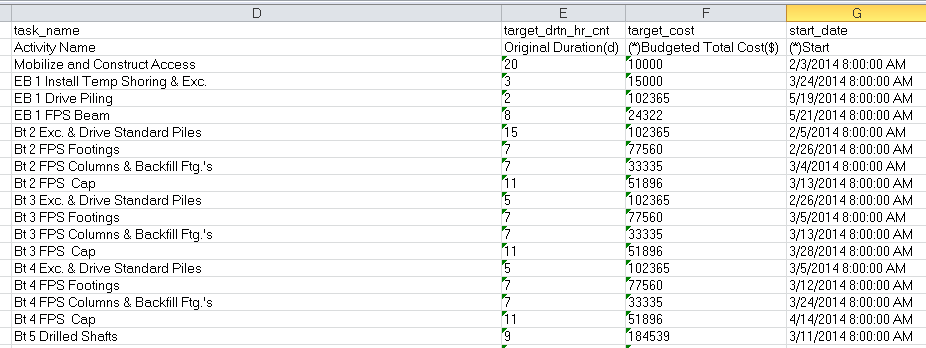
The image below shows some typical data fields displayed when exporting directly from the Activity Table to Excel:

clip_image002

Here is how you can tell which data fields can be imported via Excel: data fields that have an asterisk (*) in the second row of the title can not be imported. In the above example Budgeted Total Cost has an asterisk. While this data can be exported directly from the Activity Table, any changes made to the budgets will not import. Similarly, changes can not be made to the Start or Finish dates; these are calculated fields. Activity Name and Original Duration, on the other hand, can be modified in Excel and the changes will import.

In the next example I am going to export P6 data using the spreadsheet template method. While this takes a little longer to set up, it offers the distinct advantage of allowing users to export:

  • Activity Relationships
  • Expenses
  • Resources
  • Resource Assignments

These are considered to be Subject Areas and each Subject Area will appear as a separate tab in Excel. More importantly, users can edit data in these tabs and import the changes back into P6. (There are some limitations to what type of data can be modified in which tabs that I will point out in a moment).

To create a spreadsheet template, select File > Export > Spreadsheet – (XLS):

clip_image003

Because I want to edit budgeted costs for my activities I have chosen the Resource Assignments Subject Area during the export process, as seen below:

clip_image004[5]

Budgeted units and costs can only be modified in the Resource Assignments tab in Excel. Resource Assignments can be displayed in the Activities tab but any modifications made to the budgets in this tab will not import.

In the next screenshot I have selected Budgeted Cost as a data field. Note that the data field does not mention the type of resource (labor, nonlabor or material) because each resource assigned to the same activity will appear on a different line in the spreadsheet. P6 therefore does not need to be told the resource type.

clip_image005[5]

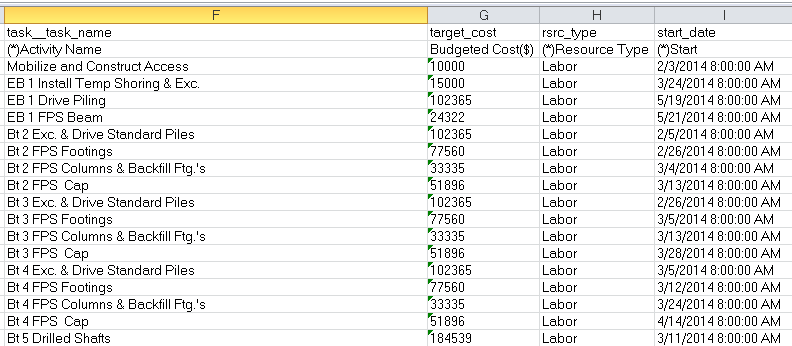
The final image shows the spreadsheet created by the template. This time there is no asterisk in the Budgeted Cost title, meaning this data can be modified and imported back into P6.

clip_image006

But notice what can not be edited – the Activity Name. The Activity Name can only be edited in the Activity tab (which I did not include in this template) or in the initial spreadsheet exported from the Activity Table. Every tab has some limitations in terms of what data fields can be imported. The Subject Area should be your first clue.

In any case, that little asterisk is a big help once you realize what it means!

Thursday, April 4, 2013

New Release 8.3 of Primavera Professional

The exciting news this week is that the long-awaited Primavera P6 R8.3 update is now available. This release includes updates for the Primavera P6 Professional client.

Starting with Primavera P6 Professional, very little about the client has changed from a visual perspective; always a good thing for existing users. What has been introduced is a new tool called the Primavera P6 Professional Visualizer: an attractive interface tool that brings together the original TimeScale Logic Diagram (TSLD) functions and a basic Gantt chart viewing tool. The Visualizer is an additional desktop application that can be launched from the P6 Professional Tools menu or from your Windows Start menu. Because it connects to the database directly you don’t have to have P6 Professional running to use it.

clip_image002[6]

See here tutorial from Tensix in video.

Another new item is a Discussion tab in the Activity Details. This allows users to communicate via the software by posting comments against particular activities in the project.

clip_image004[5]Other features include XML import/export improvements addressing one-to-one matching of data items exported in XML formats to those of the original XER formats. Users can now exchange XML project files with users of earlier version of Primavera P6 going back to P6 R6.2 SP4.

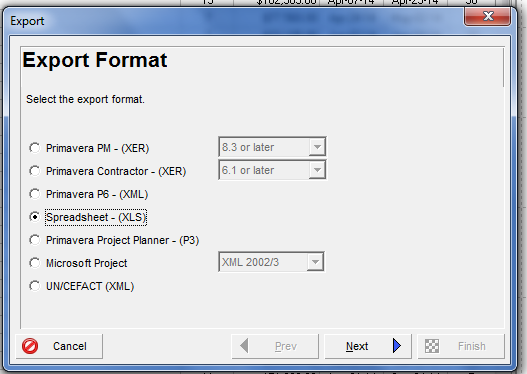
clip_image005[4]The IPMR Data Item Description (DID), number DI-MGMT-81861 went into effect on July 1st, 2012 and part of this calls for a specific UN/CEFACT (XML) software-neutral export format for the IMPR Format 7.

For government contractors, this format is now available to Primavera P6 R8.3 users via the Export Format dialog as shown above.

Further items of note are the options to load or not load the project summary data upon startup of Primavera P6 and the option to use either online help or local help.