Showing posts with label Structuring. Show all posts

Tuesday, December 5, 2017

What is a Project Plan?

In large enterprises with hundreds or thousands of capital projects, it is important to create standards to which all projects must adhere. This provides the organization the ability to roll up and assess overall project performance across the organization as well as look at resource capacity and other key performance indicators.

Read the post on Ten Six

Friday, November 24, 2017

Primavera P6 and Resource Codes Explained

Primavera P6’s resource codes are helpful for sorting resource databases, which can become cluttered with an abundance of resource definitions.
Once created and assigned resources become an important fixture in the scheduling historical record. Resources are meant to be permanent database elements, and resource databases are therefore, generally, large and difficult to sort through. Resource codes, however, make it possible to sort resources by your desired category.

This article demonstrates how to employ resource codes to sort a Primavera P6 Professional resource database.

Read the post on TenSix

Wednesday, November 15, 2017

Time Saving Tips on P6

Here are some time saving ways to interact with Oracle Primavera P6 Professional R8.1 that you may not have discovered.

1 – Drag And Drop To Save A Lot

If you want to move an object from one branch of a hierarchy to another, you can do it simply by placing the cursor in the vertical band furthest to the left. 

Read the post on Ten Six

Thursday, November 9, 2017

Primavera P6 and Material Resources

In Primavera P6 Professional it is possible to define labor, equipment, and material resources. Material resources require definition of a unit of measure.
Labor resources may be trade skills or specific individuals. Typically, the trade skill is inserted as a place holder until the resource manager assigns an individual to perform the work. It is important to specify the labor hourly pay rate and maximum units/time. The labor maximum units/time is how many trade specific individuals are available to work on the project. Equipment resources have a standard rate.

read on Ten Six

Tuesday, October 31, 2017

How to Remove All Relationships in Primavera P6

Want to know a quick way to remove all relationships from a Primavera P6 project schedule?It is often expeditious to use an existing schedule as a template for a new and similar project schedule. Most likely though you do not want to include the relationships that may appear as a mess of spaghetti. It is possible to remove multiple relationships from multiple activities in Primavera P6 Professional, as demonstrated in the following blog Removing Relationships from Multiple Activities in Primavera P6.

But there is an even faster and simpler way to remove all relationships from the project schedule and this article shows you how to do this.

Read the post on Ten Six

Thursday, May 11, 2017

Primavera P6 Duration Type and Progressing a Schedule

Duration Type controls the way Primavera P6 manages the variables of activity duration, effort, and/or budget when adding multiple resources to an activity. It also affects these same variables when progressing the schedule with updates.

When a schedule is in the planning phase it is typically a good idea to set the duration type to fixed duration and units/time for most situation This is done so that Primavera P6 honors your activity duration estimates and increases the unknown work (units) and, therefore, the budget, based on additional required resource effort (units/time).

Read the post on Ten Six

Wednesday, July 27, 2016

Conscientious use of constrains

Generally, constraints affect the dates, violates the network logic and one of the reasons for negative floats or irrationality on the schedule. But again this is based on your project requirements and these constraints could help you to provide a complete control of a project however no more than 10% of a project’s activity should be constrained. 
Constraints other than contractual ones are generally not used since they impose specific start and or finish dates and in some instances completely OVERRIDE the logic that is contained in the schedule. The idea is to let the logic determine the dates as opposed to using constraints to do this.
Early constraints (e.g. Must Start/Finish On or After) are a typically a shortcut to represent the outcome of related work that the scheduler is excluding from the schedule logic. This is justified only for interfacing work that - in total, including its initiation - is clearly outside the scope of the project scheduled (e.g. contractual access restrictions, customer-furnished info/eqpt/permits.) Using early constraints for in-scope work (or for external work that depends on in-scope work) removes that work from logical schedule analysis, overrides the logically-derived scheduled (early) dates of the constrained activities and their successors, and jeopardizes the validity of the entire logical model of the project including float calculations.
 Late constraints (e.g. Must Start/Finish On or Before) are typically imposed to represent external obligations or commitments – aka “deadlines.” Such commitments can be imposed by contract (e.g. completion milestones) or by some other governing document (e.g. Project Charter, Board Instruction, Executive Tantrum, etc.) Late constraints can override the logically-derived (late) dates for the constrained activities and their predecessors, thereby complicating the interpretation of Total Float and identification of the “Critical Path.” Where multiple late constraints are applied in a network of related activities, Total Float becomes unreliable as an indicator of driving logic; then other methods of logical analysis must be used.
Other constraint types (Start/Finish On, or Mandatory Start/Finish) are even more restrictive with respect to driving logic flow – they are rarely if ever justified.

It is true that ALL constraints affect total float computations but so do the calendars being used, the remaining durations, the logic, the lags, the TIMES etc. So I would re-iterate that this clause was included in the scheduling specifications because constraints impose specific start and or finish dates and in some instances completely OVERRIDE the logic that is contained in the schedule.

Wednesday, June 15, 2016

Showing Relationship Arrows between Schedule Activity Bars and Not Baseline Bars

In a Primavera P6 training class last week, one attendee asked how to switch the relationship arrows from connecting the baseline bars to connecting the current progressing schedule activity bars. Once the project has been baselined and progress has been entered, you will notice that the relationship arrows are connecting your baseline bars and not the current schedule bars. How do you correct this so you can clearly see the relationships between tasks on your progressing schedule? Well, there is a simple way to make the relationship arrows connect the bars or tasks on your progressing schedule instead of the baseline bars.~

Wednesday, April 20, 2016

Organizing Filters by Project Layouts in Primavera P6 Professional

In Primavera P6 Professional there are several different filter types including default, global, and user defined. But did you know there is also a fourth type of filter? This is the layout filter type that can be associated with a specific Layout. This can be used to help better organize your filters.
Read on Ten Six

Monday, February 29, 2016

What is Primavera P6 Implementation and Administration?

Implementation?

The ‘out-of-the-box’ installation of Oracle Primavera P6 comes with a basic configuration set-up which requires additional customization of the administrative or ‘global’ settings in P6 to cater to your company’s needs. The whole process of customizing Primavera’s configuration is called Implementationin the Primavera world. Oracle usually relies on its Primavera partners and consulting companies with P6 Implementation Specialists to help clients set up P6 once they’ve purchased their software licenses. P6 consultants would sit down with your project team to conduct a needs analysis to help configure Primavera for you.

One of the main reasons it is necessary to have P6 configured is to make sure that the security and user access settings are properly configured to be scalable from a few to 100s of users. It is important to remember that P6 is database driven, where multiple people can work on and make changes to the same project at the same time. It is necessary to ensure that people are given access to only their projects or even parts of the projects they are responsible for. Once the security profiles are created, a user can be assigned different levels of access to various parts of Primavera, whether it’s “read only” to “can edit but not delete” to “no access”.

The basic settings the implementation process will help set up are:
  • The EPS (Enterprise Project Structure)
  • The OBS (Organizational Breakdown Structure)
  • Security Profiles – Global and Project Security Profiles
  • User Profiles
  • Global Dictionaries – resources, calendars, project & activity codes, notebook topics, etc…

The implementation process can vary depending on the complexity of your company’s needs; a straight forward implementation can take as little as a day to a week. If there is a requirement to integrate other software programs with P6, then it may take upwards of a year or more to make sure everything is set up properly and tested.

Administration?

If your company is new to Primavera, you may be unaware that P6 requires at least one individual that is knowledgeable in the Administrative functions of Primavera. Your company may have involved a consulting expert with the set-up or implementation of P6, but the on-going maintenance of P6 requires an individual that can make changes on an as needed basis would be the P6 Administrators role. For example, if you purchase additional P6 licenses, then someone in your company needs to be able to create additional users with the proper security and access settings.

As a best practice, every company will have one “super administrator” user account (license) that will have full access and abilities to make changes in your company’s P6 settings. For larger companies, additional Business Unit Administrators may be needed for their division of projects.

Oracle Primavera has made changes on how to access the administrative functions in their newer versions of P6. All of the administrative access is now done solely through the P6 Web Access platform in the EPPM (Enterprise Project Portfolio Management) suite. In general, most companies primarily use the P6 Windows version of Primavera to manage their projects. However, these companies would need their administrator to be familiar with P6 Web Access as well for administrative purposes.

Some of the duties a Primavera P6 Administrator will have to do are:
  • Maintenance of the EPS (Enterprise Project Structure)
  • Maintenance of the OBS (Organizational Breakdown Structure)
  • Add/Remove users
  • Monitoring of Global/Enterprise dictionaries such as: Calendars, Activity Codes, Project Codes, Resource & Role Libraries, Calendars, Cost accounts, Notebook Topics, UDFs (User Defined Fields), Filters, Timesheets, Scheduled Services and much more
  • Creation/maintenance of Layouts/Views, Dashboards, Portfolio Views 
  • Some technical support – Java issues, database or SQL inquiries, Event Code errors, web browser issues, and other environmental issues that may come up.

Thursday, February 18, 2016

Creating a WBS for Success

Projects can be overwhelming; no matter their size, the task of completing a project is daunting. That is why a Work Breakdown Structure (WBS) can be used to break down a project into manageable sections and help the project flow through execution to success. Creating a WBS requires project managers to strategically decide how they will lay out their deliverables, or work packages, in order to fulfill the project scope.
Read the rest on CPM Solutions

Wednesday, February 10, 2016

How to get the Values of Your Activity Codes to Customize the Look of Your Gantt Chart in Primavera P6?

P6 Activity Codes as a Source of Gantt Bar Configuration

I have often been asked the question – ‘can I have my schedule activity bars automatically appear a specific color and/or pattern according to the value of a specific code?’  Yes, you can do this very easily.

Let’s look at one simple example.  


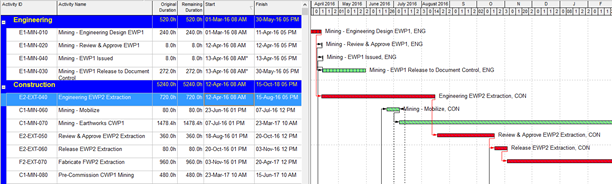
Above I have incorporated additional bar configurations along with the default Critical Remaining Work and Remaining Work configurations. 

The additional bar configurations are generating the hatching by filtering on the activity code used to assign the ‘Engineering’ and ‘Construction’ grouping in the layout.


Above are the results of additional bar configurations to add the hatching for the activity code assigning the Engineering code or Construction code.


Above, the default critical and remaining bar configurations have been turned off – displayed are just the hatching in the colors specified in the new bar configurations, specified by activity code.


The filter attached is a simple one line filter which will activate the bar configuration in accordance with the assignment of the specified activity code value to the activity.


The example above shows the simple filter attached to the ‘Engineering Activity’ bar configuration.

This is a very simple example. Be creative and use the functionality of the Bar Configurations to help you with creating the customized Gantt Bar(s) you require.  With the bar configurations you need enabled – save your layout – create different layouts/bar configurations as required.

Monday, February 8, 2016

Things You Should Know About Primavera P6 Calendars


Primavera P6 has a pretty smart scheduling engine built-in, but it’s not quite smart enough to know what time to tell the electricians to start in the morning and when to have lunch.

That’s where Primavera P6 Calendars come in. You can’t build a schedule in Primavera P6 without at least one calendar. So to help you master P6’s Calendaring features and understand how Calendars work with the scheduling engine, here are some essentials you’ll want to learn.

1 – Calendars are assigned to activities, not projects

You can read the rest of this post here


Thursday, February 4, 2016

“How Do You Know When to Use a Constraint or Lag?”

QUESTION

“P6 lets me add constraints and lags to activity relationships. How do you know when to use a constraint or lag on an activity and which one is best for each situation?”

ANSWER

This question seems to be a favourite in our P6 training courses. Not all relationships are the same when it comes to project planning. External and internal factors can impose challenges that project managers have to deal with ASAP! There is no specific rule that says when to use a constraint or lag on an activity, but based on what each does we can make an educated assumption.

First, let’s talk about constraints.

CONSTRAINTS

Constraints are set in P6 to specify a date or a point in time when an activity can begin or end. Constraints can also be imposed on the entire project. Constraints can be thought of as “rules” – they are concrete in the schedule. Constraints are imposed by external forces, like a delay in delivery of materials or a date a stakeholder requires the project to be finished. Constraints are best used on milestones but can also be used on individual activities. A rule of thumb is that the less constraints you use the better.

You can assign two constraints to an activity if it can only be completed in a specific time frame. For example, if a site is only available from Feb 1 to Feb 14 for a 5 day activity, you could assign a “Start On or After” constraint to Feb 1 and a “Finish On or Before” constraint to Feb 14 to have the activity completed between these dates.

Constraints can ignore network logic, if needed, to meet the requirements you set. In this way, constraints can affect your project schedule negatively if you do not complete predecessor activities on-time.

Overview of Constraints:

  • Constraints are used to set dates in the schedule that must be met.
  • Constraints directly affect the activity they are set to, and then indirectly affect the predecessor and successor activities.
  • Use constraints on milestone activities to meet deadlines.
  • Constraints Lare “rules” that cannot be changed.
  • Do not assign too many constraints, or network logic can be ignored.


Lags, on the other hand, do not set specific dates. Instead, you can set a delay or a lead time for a predecessor or successor activity. If you enter a positive number, you will delay the successor activity by the number of days specified. In contrast, if you enter a negative number (lead), you will reduce the length of time between the activity and its predecessor.

Lags are usually imposed by internal forces. For example, a lag could be due to drying time required for concrete laid. These are forces that are due to the nature of the activity, not by an external force. In this example, you could add a 10 day lag to wait for the paint or concrete to dry completely and to begin the next activity. The date of the next activity will change depending on when the predecessor activity is finished.

Overview of Lags:

  • Lags are used to set delays or lead time between two activities.
  • Lags affect the relationship between two activities (predecessor and successor).
  • Apply lags to any activity type, but usually task dependent or resource dependent.
  • Lags are calculated using the predecessor’s calendar.
  • Lags are used when an internal force causes an activity to be delayed.
  • Lags are more “controllable” within the schedule.

CONCLUSION


Both lags and constraints should be applied with caution because of the effect that it can have on the schedule. The main difference is that constraints should be used when there is an external force, whereas lags should be used when there is an internal force affecting the activity. As a best practice, always add a note in the activity Notebook tab to indicate why you are adding the constraint or lag to an activity so that other P6 users do not change anything without prior knowledge.

Monday, February 1, 2016

Primavera Functions That Project Managers Must Know

Oracle Primavera helps to make your project management responsibilities easier and more efficient. However, understanding all of the tips and tricks in Primavera functions does not necessarily mean that you will be productive.


Instead, you need to know how to perform certain, specific actions and functions, and this list will help you get on your way towards a more successful, productive schedule.
Read the rest here

From Innovative Management Solutions

Tuesday, May 26, 2015

The Negatives of Negative Lag

Are you looking for ways to fast track your schedule? Fast tracking or “crashing the schedule” can employ various methods, but typically takes activities that are scheduled in series and performs all or some of their duration in parallel to shorten the project’s planned or remaining lifecycle.

If you want to shorten your schedule by fast tracking then you most likely are considering the use of lags or negative lags, the latter otherwise known as ‘leads’.

Read the rest on Tensix Blog

Friday, February 6, 2015

Planned dates in Primavera P6

Primavera P6 has quite a few date fields that are often misunderstood. Perhaps no date field is stranger than the “planned” date. To begin with, there will always be a Planned Start and a Planned Finish date associated with every activity. In a schedule with no progress (or what we would traditionally call the “baseline” if P6 did not use this designation for target schedules) the following is always true:

  • Planned Start = Start
  • Planned Finish = Finish

Once progress is recorded, however, all bets are off. The planned dates will not reflect actual dates, for example. Primavera P6 shows actual dates in the Start and Finish columns, making it easy to see which activities have progress (take that, Microsoft Project!) without having to add the Actual Start and Actual Finish columns. Space is always at a premium in a printout so not having to add the actual columns is a nice benefit.

Here is where it gets interesting. Changing the Planned Start or Planned Finish date on an activity with no progress will change the Start and Finish dates and likewise move the bar in the Gantt Chart. The rules are:

  • Changing the Planned Start changes the Start date, even if the Planned Start is beforethe original Start date
  • Changing the Planned Finish moves the Finish date and changes the Original Duration to match
  • Changing the Planned Start and Planned Finish will move the Start and Finish dates accordingly
  • No other activities are affected by changes to the Planned dates of an activity

None of this will happen, however, if the “Schedule automatically when a change affects date” scheduling option is selected. This is because scheduling the project wipes out the changes made to the Planned dates. These are not constraints, after all. The logic was never modified. Which may seem like Planned dates are a cruel trick.

Well, we create logic for a reason. Moving bars around is not scheduling. Logic is supposed to drive dates. A few constraints are okay – although some owners are adamant about having none – as long as they do not cause an interruption to the critical path. Postponing the start of a critical activity would obviously make no sense.

Friday, December 26, 2014

Applying Hard Constraints to a Schedule in Primavera P6

When do you apply hard or soft constraints in Primavera P6? This is a question I had recently while working with a client and while there are no hard and fast rules as project specific circumstances can differ, here are some guidelines that may help. Many times the project schedule is influenced by certain constraints on the project. These constraints can be contractual, external, or internal.

Read More on Ten Six

Tuesday, December 23, 2014

BIM Implementation and Project Controls

As current regulations require BIM implementation for every public sector construction and infrastructure project from 2016 onwards[1]designers, contractors and supply chains in the industry wil l need to move on fast from their current ways of working and adapt to achieve compliance with the upcoming legislation. The policy is however, not a punitive one for the industry. It is a progressive plan to significantly improve industry efficiency, from the project management stage in design and construction to the subsequent operational management of the asset during its lifetime.

What is BIM?

Read more on  http://www.planningplanet.com/

Wednesday, September 3, 2014

Level of Effort Activities

I’m including three tutorials over the use of Level of Effort Activities on Primavera P6.

Setting Up LOEs and Resource Loading Them
Use of Level of Effort (LOE) activities to resource load a schedule.

Level of Effort and Percent Complete
Used primarily to resource-load an ongoing support activity in Primavera P6 schedule.

Use A Level Of Effort To Add Work Stoppage Info To A Project and Still Track To Your Primavera Baseline
When we develop a schedule we assume that an activity can be finished uninterrupted once it has commenced. But, sometime events occur which force the work on the activity to stop.

Be proactive.