Monday, February 15, 2016

Cannot filter on Start or Finish date

You have a very simple project. You want to show only activity which finish on 25-Jan-16.
As usual, you create an filter like this:

Then… SURPRISE. It’s a blank screen.

A big “WHY” question.
To answer this question. You need to show the time of activity by going to Edit -> User Preferences -> Dates tab -> In “Time” section, click on “24 hour”

Now you can see the Time when activity start and finish.

You can notice that when we define the filter, by default the Time is 00:00. That’s why P6 can not find any activity.

So we can change the criteria to cover the whole day like this:


Now P6 can show the activity which has finish date of 25-Jan-16.

Wednesday, February 10, 2016

How to get the Values of Your Activity Codes to Customize the Look of Your Gantt Chart in Primavera P6?

P6 Activity Codes as a Source of Gantt Bar Configuration

I have often been asked the question – ‘can I have my schedule activity bars automatically appear a specific color and/or pattern according to the value of a specific code?’  Yes, you can do this very easily.

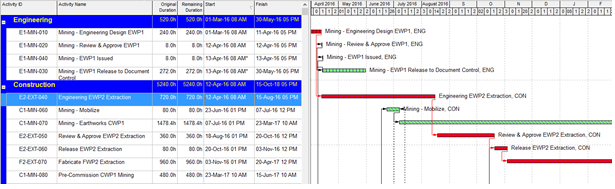
Let’s look at one simple example.  


Above I have incorporated additional bar configurations along with the default Critical Remaining Work and Remaining Work configurations. 

The additional bar configurations are generating the hatching by filtering on the activity code used to assign the ‘Engineering’ and ‘Construction’ grouping in the layout.


Above are the results of additional bar configurations to add the hatching for the activity code assigning the Engineering code or Construction code.


Above, the default critical and remaining bar configurations have been turned off – displayed are just the hatching in the colors specified in the new bar configurations, specified by activity code.


The filter attached is a simple one line filter which will activate the bar configuration in accordance with the assignment of the specified activity code value to the activity.


The example above shows the simple filter attached to the ‘Engineering Activity’ bar configuration.

This is a very simple example. Be creative and use the functionality of the Bar Configurations to help you with creating the customized Gantt Bar(s) you require.  With the bar configurations you need enabled – save your layout – create different layouts/bar configurations as required.

Monday, February 8, 2016

Things You Should Know About Primavera P6 Calendars


Primavera P6 has a pretty smart scheduling engine built-in, but it’s not quite smart enough to know what time to tell the electricians to start in the morning and when to have lunch.

That’s where Primavera P6 Calendars come in. You can’t build a schedule in Primavera P6 without at least one calendar. So to help you master P6’s Calendaring features and understand how Calendars work with the scheduling engine, here are some essentials you’ll want to learn.

1 – Calendars are assigned to activities, not projects

You can read the rest of this post here


Thursday, February 4, 2016

“How Do You Know When to Use a Constraint or Lag?”

QUESTION

“P6 lets me add constraints and lags to activity relationships. How do you know when to use a constraint or lag on an activity and which one is best for each situation?”

ANSWER

This question seems to be a favourite in our P6 training courses. Not all relationships are the same when it comes to project planning. External and internal factors can impose challenges that project managers have to deal with ASAP! There is no specific rule that says when to use a constraint or lag on an activity, but based on what each does we can make an educated assumption.

First, let’s talk about constraints.

CONSTRAINTS

Constraints are set in P6 to specify a date or a point in time when an activity can begin or end. Constraints can also be imposed on the entire project. Constraints can be thought of as “rules” – they are concrete in the schedule. Constraints are imposed by external forces, like a delay in delivery of materials or a date a stakeholder requires the project to be finished. Constraints are best used on milestones but can also be used on individual activities. A rule of thumb is that the less constraints you use the better.

You can assign two constraints to an activity if it can only be completed in a specific time frame. For example, if a site is only available from Feb 1 to Feb 14 for a 5 day activity, you could assign a “Start On or After” constraint to Feb 1 and a “Finish On or Before” constraint to Feb 14 to have the activity completed between these dates.

Constraints can ignore network logic, if needed, to meet the requirements you set. In this way, constraints can affect your project schedule negatively if you do not complete predecessor activities on-time.

Overview of Constraints:

  • Constraints are used to set dates in the schedule that must be met.
  • Constraints directly affect the activity they are set to, and then indirectly affect the predecessor and successor activities.
  • Use constraints on milestone activities to meet deadlines.
  • Constraints Lare “rules” that cannot be changed.
  • Do not assign too many constraints, or network logic can be ignored.


Lags, on the other hand, do not set specific dates. Instead, you can set a delay or a lead time for a predecessor or successor activity. If you enter a positive number, you will delay the successor activity by the number of days specified. In contrast, if you enter a negative number (lead), you will reduce the length of time between the activity and its predecessor.

Lags are usually imposed by internal forces. For example, a lag could be due to drying time required for concrete laid. These are forces that are due to the nature of the activity, not by an external force. In this example, you could add a 10 day lag to wait for the paint or concrete to dry completely and to begin the next activity. The date of the next activity will change depending on when the predecessor activity is finished.

Overview of Lags:

  • Lags are used to set delays or lead time between two activities.
  • Lags affect the relationship between two activities (predecessor and successor).
  • Apply lags to any activity type, but usually task dependent or resource dependent.
  • Lags are calculated using the predecessor’s calendar.
  • Lags are used when an internal force causes an activity to be delayed.
  • Lags are more “controllable” within the schedule.

CONCLUSION


Both lags and constraints should be applied with caution because of the effect that it can have on the schedule. The main difference is that constraints should be used when there is an external force, whereas lags should be used when there is an internal force affecting the activity. As a best practice, always add a note in the activity Notebook tab to indicate why you are adding the constraint or lag to an activity so that other P6 users do not change anything without prior knowledge.

Monday, February 1, 2016

Primavera Functions That Project Managers Must Know

Oracle Primavera helps to make your project management responsibilities easier and more efficient. However, understanding all of the tips and tricks in Primavera functions does not necessarily mean that you will be productive.


Instead, you need to know how to perform certain, specific actions and functions, and this list will help you get on your way towards a more successful, productive schedule.
Read the rest here

From Innovative Management Solutions

Wednesday, November 4, 2015

To Shorten The Critical Path

Project Managers are typically under great pressure to complete the project in as little time as possible. It is therefore imperative that project managers become familiar with the basic techniques to shorten the critical path and the many different ways to do this.

Read the post on Ten Six

Tuesday, May 26, 2015

The Negatives of Negative Lag

Are you looking for ways to fast track your schedule? Fast tracking or “crashing the schedule” can employ various methods, but typically takes activities that are scheduled in series and performs all or some of their duration in parallel to shorten the project’s planned or remaining lifecycle.

If you want to shorten your schedule by fast tracking then you most likely are considering the use of lags or negative lags, the latter otherwise known as ‘leads’.

Read the rest on Tensix Blog