Thursday, January 8, 2015

Using Level of Effort (LOE) Activities in Primavera P6

Level of Effort (LOE) activities are typically used to define effort that in and of itself doesn’t generate a deliverable, but does incur labor/costs to the project. Items such as management, security or safety are ongoing and require resources but are not on the critical path. These overhead costs are usually not immaterial. Overhead efforts can span part of the project, or the entire life-cycle. They are also associated with other activities in the project.
Modeling these efforts and cost individually by assigning resources to every activity is prohibitive. So how does one easily define the effort of these tasks throughout the life-cycle of the project? Well, Primavera P6 has a Level of Effort activity type to help you model this type of work in a low-maintenance way, and one that does not interfere with the critical path.
Read More in TenSix

Friday, December 26, 2014

Applying Hard Constraints to a Schedule in Primavera P6

When do you apply hard or soft constraints in Primavera P6? This is a question I had recently while working with a client and while there are no hard and fast rules as project specific circumstances can differ, here are some guidelines that may help. Many times the project schedule is influenced by certain constraints on the project. These constraints can be contractual, external, or internal.

Read More on Ten Six

Tuesday, December 23, 2014

BIM Implementation and Project Controls

As current regulations require BIM implementation for every public sector construction and infrastructure project from 2016 onwards[1]designers, contractors and supply chains in the industry wil l need to move on fast from their current ways of working and adapt to achieve compliance with the upcoming legislation. The policy is however, not a punitive one for the industry. It is a progressive plan to significantly improve industry efficiency, from the project management stage in design and construction to the subsequent operational management of the asset during its lifetime.

What is BIM?

Read more on  http://www.planningplanet.com/

Monday, September 15, 2014

Export Resources without Cost Data

The purpose of exporting Primavera P6 files in “XER” format is to transmit all of the project data to another database. In many cases we are not looking to exclude any data. So how do we avoid sharing sensitive cost data with other parties? Contractors may not want owners, subcontractors and other parties to have access to this proprietary information.

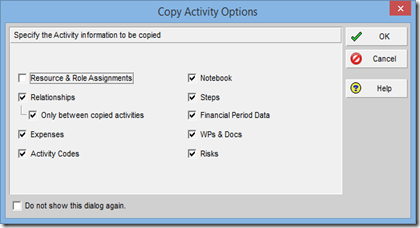
There are two options for not sharing cost data. One option is to delete resource assignments altogether. We do this by copying the schedule inside Primavera P6 and un-checking the “Resource & Role Assignments box, as seen below:
image

While this option works perfectly well, the recipient will see no resources or roles in the schedule. What if we want the recipient of this file to be able to see the resource units but not the unit prices? This requires a different approach. Option 2 involves creating a new user and associated user profile who is not allowed to view cost data. When this user exports the file the resource rates will disappear but the resource assignments and units will remain intact.

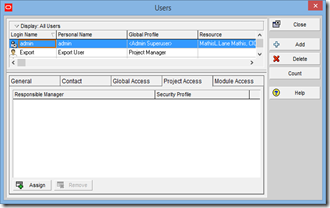
First, we create a new user and label that person in such a way that we remember why this user was created in the first place. Go to Admin → Users. Below, I have added a new user with the name “Export User”:
image

Note that I have given this new user access to every project in my database by assigning this user to the highest level in the Organization Breakdown Structure (OBS). This is not absolutely necessary but it does make it easier to export any project without cost data.

Second, we need to assign the new user a Project Profile that excludes the ability to “View Project Costs/Financials”. Go to Admin → Security Profiles and select Project Profiles. In the screenshot below I have added a new Project Profile, “No Costs Exported”:

image

Also, I gave this new user no ability to modify schedules because the only purpose of this user is to export projects sans cost data. As soon as the project has been exported I will log back in using my normal user name.

Now we are ready to export a project with cost data. Keep in mind that you will need to log in as the new user first!

From Bill Peppon

Export Resources without Cost Data

The purpose of exporting Primavera P6 files in “XER” format is to transmit all of the project data to another database. In many cases we are not looking to exclude any data. So how do we avoid sharing sensitive cost data with other parties? Contractors may not want owners, subcontractors and other parties to have access to this proprietary information.

There are two options for not sharing cost data. One option is to delete resource assignments altogether. We do this by copying the schedule inside Primavera P6 and un-checking the “Resource & Role Assignments box, as seen below:

clip_image001

While this option works perfectly well, the recipient will see no resources or roles in the schedule. What if we want the recipient of this file to be able to see the resource units but not the unit prices? This requires a different approach. Option 2 involves creating a new user and associated user profile who is not allowed to view cost data. When this user exports the file the resource rates will disappear but the resource assignments and units will remain intact.

First, we create a new user and label that person in such a way that we remember why this user was created in the first place. Go to Admin → Users. Below, I have added a new user with the name “Export User”:

clip_image002

Note that I have given this new user access to every project in my database by assigning this user to the highest level in the Organization Breakdown Structure (OBS). This is not absolutely necessary but it does make it easier to export any project without cost data.

Second, we need to assign the new user a Project Profile that excludes the ability to “View Project Costs/Financials”. Go to Admin → Security Profiles and select Project Profiles. In the screenshot below I have added a new Project Profile, “No Costs Exported”:

clip_image003

Also, I gave this new user no ability to modify schedules because the only purpose of this user is to export projects sans cost data. As soon as the project has been exported I will log back in using my normal user name.

Now we are ready to export a project with cost data. Keep in mind that you will need to log in as the new user first!

From Bill Peppon

Wednesday, September 3, 2014

Level of Effort Activities

I’m including three tutorials over the use of Level of Effort Activities on Primavera P6.

Setting Up LOEs and Resource Loading Them
Use of Level of Effort (LOE) activities to resource load a schedule.

Level of Effort and Percent Complete
Used primarily to resource-load an ongoing support activity in Primavera P6 schedule.

Use A Level Of Effort To Add Work Stoppage Info To A Project and Still Track To Your Primavera Baseline
When we develop a schedule we assume that an activity can be finished uninterrupted once it has commenced. But, sometime events occur which force the work on the activity to stop.

Be proactive.

Tuesday, September 2, 2014

Percent Complete Type

The activity percent complete type is one of "Duration", "Units", or "Physical". The percent complete type controls whether the Activity % Complete is tied to the Duration % Complete, the Units % Complete, or the Physical % Complete for the activity. Set the percent complete type to "Duration" for activities which are duration driven, for example, administration tasks and training classes. Set the percent complete type to "Physical" for activities which are work-product driven, for example, creating a document or a product. Set the percent complete type to "Units" for activities which are work effort driven, for example, providing a consulting service.

Activity Percent Complete Fields

Physical % Complete

The activity physical percent complete. The physical percent complete reflects the actual progress made on the activity's work products so far. Physical percent complete can be manually entered by people familiar with the status of the activity's work products or it can be based on the completion of assigned Steps. Always in the range 0 to 100.

Duration % Complete

The percent complete of the activity duration. Computed as ((Planned Duration - Remain Duration) / Planned Duration) * 100. Always in the range 0 to 100. The planned duration is taken from the current plan, not from the current baseline.

Duration % of Planned

The activity actual duration percent of planned. Computed as (Actual Duration / BL Duration) * 100. The value can exceed 100. The BL Duration is the activity's at complete duration from the current baseline.

Activity % Complete

The activity percent complete. This value is tied to the activity Duration % Complete, Units % Complete, or Physical % Complete, depending on the setting for the activity's Percent Complete Type, which is one of "Duration", "Units", or "Physical". Always in the range 0 to 100.

Schedule % Complete

The Schedule % Complete specifies how much of the activity's baseline duration has been completed so far. Computed based on where the current data date falls between the activity' s baseline start and finish dates. If the data date is earlier than the BL Start, the Schedule % Complete is 0. If the data date is later than the BL Finish, the Schedule % Complete is 100. The Schedule % Complete indicates how much of the activity duration should be currently completed, relative to the selected baseline.

Note: Summary Schedule percent complete when displayed on an organize band, will ALWAYS be calculated as (BCWS* 100) / BAC, regardless of what earned value technique i. s selected for the activity's WBS.

Performance % Complete

Performance percent complete is used to compute earned value and may be based on the Activity % Complete, on the 0/100 rule, on the 50/50 rule, etc., depending on the technique for computing earned-value percent complete for the activity's WBS. The Performance % Complete specifies what percentage of the activity's planned worth has been earned so far.

Note: Summary Performance percent complete when displayed on an organize band, will ALWAYS be calculated as (BCWP * 100) / BAC, regardless of what earned value technique is selected for the activity's WBS.