Wednesday, March 2, 2016

Primavera P6 Professional EVM Features

Increasingly of late, we’ve been getting enquiries about the capabilities of Primavera P6 Professional as far as performing Earned Value Management (EVM) is concerned. Can it do it? If so, can you help us use Primavera P6 for Earned Value Management? Can I develop a DoD or DoE certified EVM system using just Primavera P6?


Read the article on TenSix

Monday, February 29, 2016

What is Primavera P6 Implementation and Administration?

Implementation?

The ‘out-of-the-box’ installation of Oracle Primavera P6 comes with a basic configuration set-up which requires additional customization of the administrative or ‘global’ settings in P6 to cater to your company’s needs. The whole process of customizing Primavera’s configuration is called Implementationin the Primavera world. Oracle usually relies on its Primavera partners and consulting companies with P6 Implementation Specialists to help clients set up P6 once they’ve purchased their software licenses. P6 consultants would sit down with your project team to conduct a needs analysis to help configure Primavera for you.

One of the main reasons it is necessary to have P6 configured is to make sure that the security and user access settings are properly configured to be scalable from a few to 100s of users. It is important to remember that P6 is database driven, where multiple people can work on and make changes to the same project at the same time. It is necessary to ensure that people are given access to only their projects or even parts of the projects they are responsible for. Once the security profiles are created, a user can be assigned different levels of access to various parts of Primavera, whether it’s “read only” to “can edit but not delete” to “no access”.

The basic settings the implementation process will help set up are:
  • The EPS (Enterprise Project Structure)
  • The OBS (Organizational Breakdown Structure)
  • Security Profiles – Global and Project Security Profiles
  • User Profiles
  • Global Dictionaries – resources, calendars, project & activity codes, notebook topics, etc…

The implementation process can vary depending on the complexity of your company’s needs; a straight forward implementation can take as little as a day to a week. If there is a requirement to integrate other software programs with P6, then it may take upwards of a year or more to make sure everything is set up properly and tested.

Administration?

If your company is new to Primavera, you may be unaware that P6 requires at least one individual that is knowledgeable in the Administrative functions of Primavera. Your company may have involved a consulting expert with the set-up or implementation of P6, but the on-going maintenance of P6 requires an individual that can make changes on an as needed basis would be the P6 Administrators role. For example, if you purchase additional P6 licenses, then someone in your company needs to be able to create additional users with the proper security and access settings.

As a best practice, every company will have one “super administrator” user account (license) that will have full access and abilities to make changes in your company’s P6 settings. For larger companies, additional Business Unit Administrators may be needed for their division of projects.

Oracle Primavera has made changes on how to access the administrative functions in their newer versions of P6. All of the administrative access is now done solely through the P6 Web Access platform in the EPPM (Enterprise Project Portfolio Management) suite. In general, most companies primarily use the P6 Windows version of Primavera to manage their projects. However, these companies would need their administrator to be familiar with P6 Web Access as well for administrative purposes.

Some of the duties a Primavera P6 Administrator will have to do are:
  • Maintenance of the EPS (Enterprise Project Structure)
  • Maintenance of the OBS (Organizational Breakdown Structure)
  • Add/Remove users
  • Monitoring of Global/Enterprise dictionaries such as: Calendars, Activity Codes, Project Codes, Resource & Role Libraries, Calendars, Cost accounts, Notebook Topics, UDFs (User Defined Fields), Filters, Timesheets, Scheduled Services and much more
  • Creation/maintenance of Layouts/Views, Dashboards, Portfolio Views 
  • Some technical support – Java issues, database or SQL inquiries, Event Code errors, web browser issues, and other environmental issues that may come up.

Tuesday, February 23, 2016

Process Control & Schedule Hierarchy

A Schedule Hierarchy defines the schedule control system and several interrelated levels of schedules at various levels. Schedule hierarchy provides a framework for project schedule development.

Primarily, there are following 4 level of schedules being applied on medium to large size projects to identify the scope and division and as well as contractual/project milestones.

Level I: Milestone Summary Schedule

Depicts overall time frame of project, covers total project scope and highlights contractual and Project milestones. This schedule is used by Management to highlight major and significant events as well as to communicate overall scope and status of project. This level schedule can also be used for decision making.

Level II: Summary Schedule

Level II Schedule is summarized by facility, discipline and areas for Engineering, highlighting long lead items, critical items for Procurement, and summarized by work package for Construction. Level II schedule establish requirements at the facility level, phase or work phase. It depicts the relationship between facilities/phases and establish facility criticality.

Level III: Detailed Engineering, Procurement and Construction Schedule

Integrated EPC Schedule where Engineering is sorted by discipline, grouped by systems/area depicting system requirement. Procurement identifies demand by facility/area or systems and as well identify the major equipment delivery. Construction/startup is grouped by system/area depicting interrelationships and timeframes. Level III Schedules establish the basis for staff requirements Task deliverables, material and subcontract requirements and bull release and installation rates. Level III schedule establish construction equipment requirements and integrates facility/area breakdown into system turnover packages. Level III schedules are maintained at regular basis and used for What-if analysis.

Level IV: Identification of detailed work plan, log list

 Level IV schedule is broken down at work activity level i.e., drawings, specs, data sheets etc. It depicts construction by work package/area/facility/craft/crew and establish construction sequence. Level IV schedule provides basis for detail construction work planning and rolling schedules and its a working document that is continually updated and revised to reflect project needs and circumstances.

Schedule Baseline Process


Schedule must be baselined to map it to current schedule to avoid slipages and to get early warnings. This also assists in developing planned S Curves and histograms to keep the current schedule on track.

Thursday, February 18, 2016

Creating a WBS for Success

Projects can be overwhelming; no matter their size, the task of completing a project is daunting. That is why a Work Breakdown Structure (WBS) can be used to break down a project into manageable sections and help the project flow through execution to success. Creating a WBS requires project managers to strategically decide how they will lay out their deliverables, or work packages, in order to fulfill the project scope.
Read the rest on CPM Solutions

Monday, February 15, 2016

Cannot filter on Start or Finish date

You have a very simple project. You want to show only activity which finish on 25-Jan-16.
As usual, you create an filter like this:

Then… SURPRISE. It’s a blank screen.

A big “WHY” question.
To answer this question. You need to show the time of activity by going to Edit -> User Preferences -> Dates tab -> In “Time” section, click on “24 hour”

Now you can see the Time when activity start and finish.

You can notice that when we define the filter, by default the Time is 00:00. That’s why P6 can not find any activity.

So we can change the criteria to cover the whole day like this:


Now P6 can show the activity which has finish date of 25-Jan-16.

Wednesday, February 10, 2016

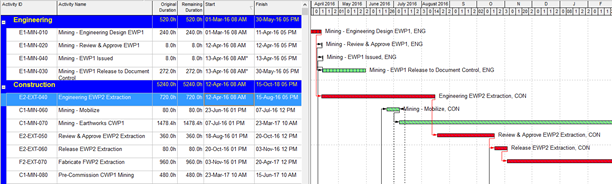
How to get the Values of Your Activity Codes to Customize the Look of Your Gantt Chart in Primavera P6?

P6 Activity Codes as a Source of Gantt Bar Configuration

I have often been asked the question – ‘can I have my schedule activity bars automatically appear a specific color and/or pattern according to the value of a specific code?’  Yes, you can do this very easily.

Let’s look at one simple example.  


Above I have incorporated additional bar configurations along with the default Critical Remaining Work and Remaining Work configurations. 

The additional bar configurations are generating the hatching by filtering on the activity code used to assign the ‘Engineering’ and ‘Construction’ grouping in the layout.


Above are the results of additional bar configurations to add the hatching for the activity code assigning the Engineering code or Construction code.


Above, the default critical and remaining bar configurations have been turned off – displayed are just the hatching in the colors specified in the new bar configurations, specified by activity code.


The filter attached is a simple one line filter which will activate the bar configuration in accordance with the assignment of the specified activity code value to the activity.


The example above shows the simple filter attached to the ‘Engineering Activity’ bar configuration.

This is a very simple example. Be creative and use the functionality of the Bar Configurations to help you with creating the customized Gantt Bar(s) you require.  With the bar configurations you need enabled – save your layout – create different layouts/bar configurations as required.

Monday, February 8, 2016

Things You Should Know About Primavera P6 Calendars


Primavera P6 has a pretty smart scheduling engine built-in, but it’s not quite smart enough to know what time to tell the electricians to start in the morning and when to have lunch.

That’s where Primavera P6 Calendars come in. You can’t build a schedule in Primavera P6 without at least one calendar. So to help you master P6’s Calendaring features and understand how Calendars work with the scheduling engine, here are some essentials you’ll want to learn.

1 – Calendars are assigned to activities, not projects

You can read the rest of this post here